Christmas Fight
3D FPS Splitscreen Game
Description
This project was made for a school assignment we had right before the Christmas break, where we had full creative freedom over the game and its gameplay except for three requirements:
- It had to have an overly Christmas theme.
- It had to be controllable with a controller.
- It had to be a split-screen multiplayer game.
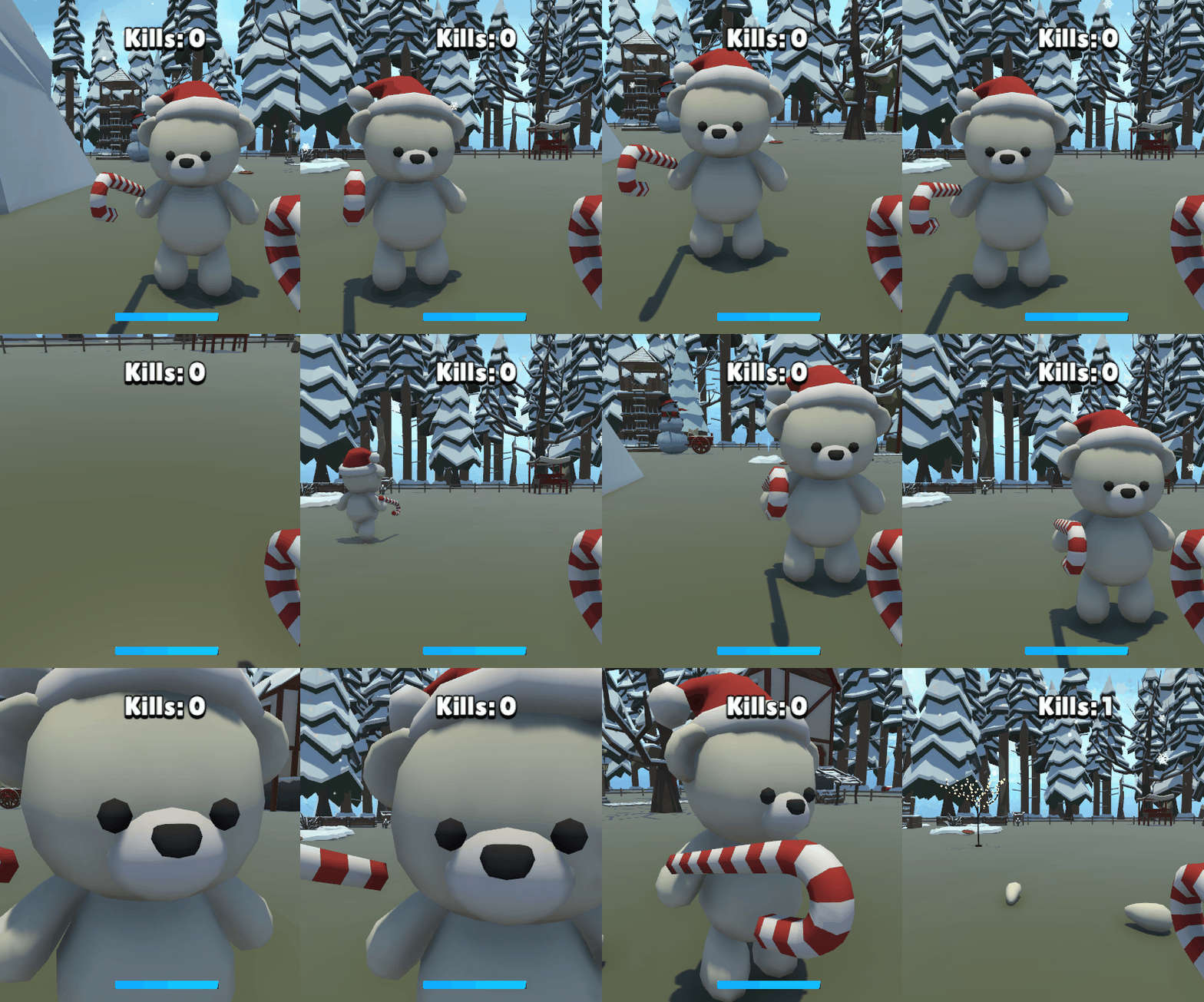
Christmas Fight Showcase
Team
I worked on this project with 2 other developers who were an absolute delight to work with. All the art was provided to us by school.
Team Members: 3
-
Developers
- Leandro Bonora (Scrum master, Level building, Programming)
- Milan Driece (Animations, Programming)
- Jona Sajia (Programming)
Work Process
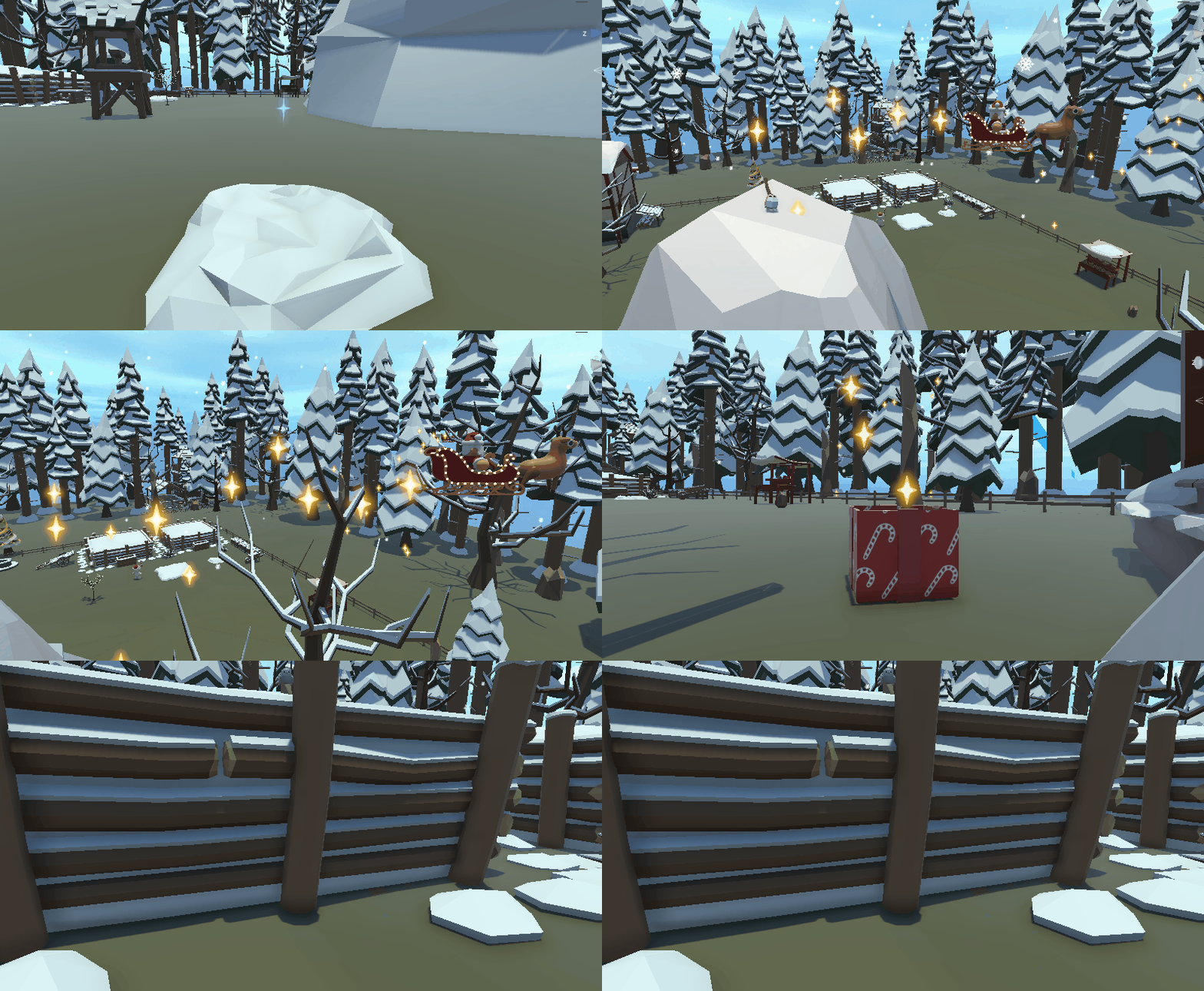
During this project I took a little step back from the programming side of stuff and really focused on other things that tend to get overlooked in my experience during a school project such as level - design, technical art such as particles and or "Special Effects" some examples include the falling snow, the stars under Santa's sleigh. I also helped putting in the audio and sound effects into the game.
I of course also programmed, to name some stuff I made everything related to the UI, Audio, Santa and helped where I was needed.
Here u can see some of the particles I worked on.
New Input System
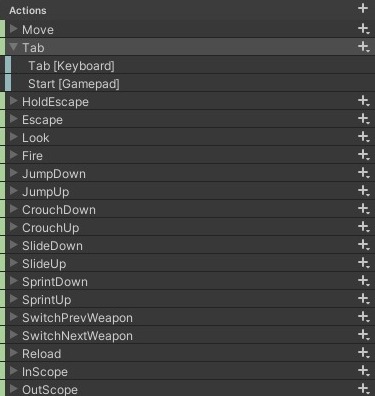
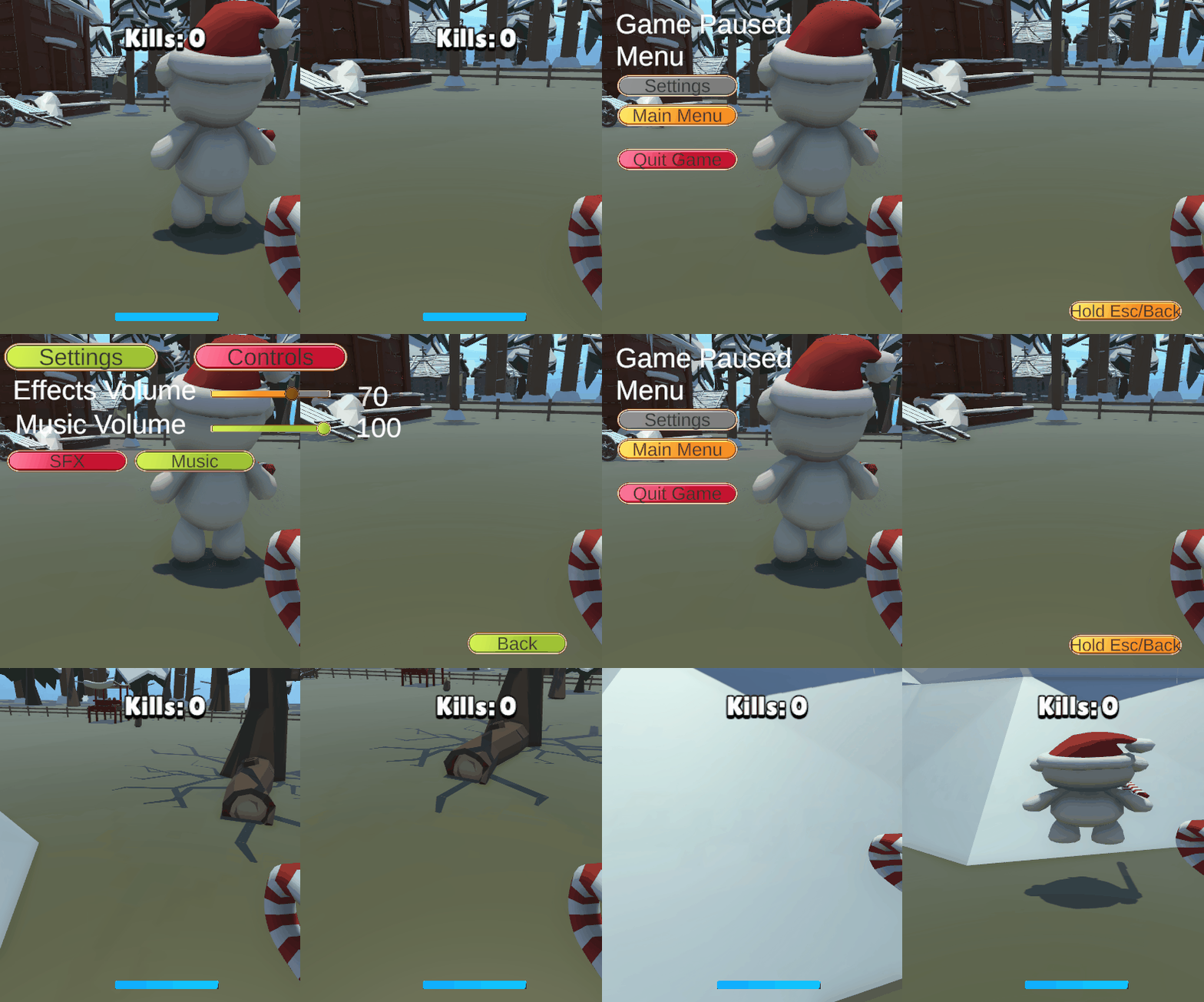
I learned how to use the new input system for this project because of it's easier controller support. Most of the UI and Input scripts work the same and or are very similar to each other, so I'll quickly go over 1 example of what happens when you press Tab or the Tab input is received via the controller.
Key difference being there are a lot of Input Actions in the whole game as u can see on the left. Input Actions can run on multiple things such in this example: "OnTab" But after learning it I don't think it was't as bad as I had imagined!
private void OnTab()
{
    if (MainMenu.Instance.m_gameStarted)
    {
        if (m_pauseMenu != null && m_settingsMenu.activeSelf == false)
        {
            m_pauseMenu.SetActive(true);
            m_ingameUI.SetActive(false);
            MenuSelectBtn();
            m_gamePaused = true;
        }
    }
}
Simply put this function pauses the game itself including the ingame UI and turns on the Pause menu.
Input Actions can be used to handle input across multiple input sources. In my example, I made an 'OnTab' action that I set to the Tab key on my Keyboard and the Start button on a generic gamepad. Additionally, Input Actions can be combined with events which I didn't do during this project but did do so in a later project.
Audio Manager
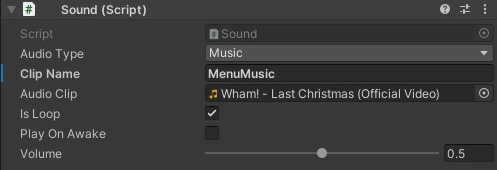
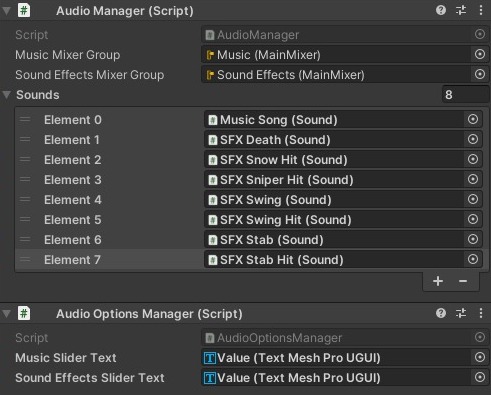
The audio manager is a bit more sophisticated and is a Singleton. During the initial setup it'll make an array of all sounds and put it in the variable m_sounds which is a array and make them available to be called upon by other scripts.
Underneath u can see an example of what one of the Sound objects holds with said Sound Script.
public class AudioManager : MonoBehaviour
{
    //Singelton since it's an manager and there only needs to be 1.
    public static AudioManager Instance;

    [SerializeField] private AudioMixerGroup m_musicMixerGroup;
    [SerializeField] private AudioMixerGroup m_soundEffectsMixerGroup;
    [SerializeField] private Sound[] m_sounds;

    private void Awake()
    {
        if (Instance != null && Instance != this) Destroy(this);
        else Instance = this;

        //For each Object with the sound script it will separately give its correct values adjusted in the inspector, and pass it on to the array.
        foreach (Sound s in m_sounds)
        {
            s.m_source = gameObject.AddComponent();
            s.m_source.clip = s.m_audioClip;
            s.m_source.loop = s.m_isLoop;
            s.m_source.volume = s.volume;

            //Checks whether the sound is a Sound Effect or Music and gives it the correct Mixer group (Made with a switch case so it's expandable)
            switch (s.m_audioType)
            {
                case Sound.AudioTypes.soundEffect:
                    s.m_source.outputAudioMixerGroup = m_soundEffectsMixerGroup;
                    break;

                case Sound.AudioTypes.music:
                    s.m_source.outputAudioMixerGroup = m_musicMixerGroup;
                    break;
            }
            if (s.m_playOnAwake) s.m_source.Play();
        }
    }

    //If this function is called it will play the audio clip with its assigned string name.
    public void Play(string clipname)
    {
        //Finds the audio Clip/Sound with the correct name and returns the sound as it is right now
        Sound s = System.Array.Find(m_sounds, sound => sound.m_clipName == clipname);
        if (s == null) return;
        s.m_source.Play();
    }

    //If this function is called it will stop the audio clip with its assigned string name.
    public void Stop(string clipname)

    {
        //Finds the audio Clip/Sound with the correct name and returns the sound as it is right now
        Sound s = System.Array.Find(m_sounds, dummySound => dummySound.m_clipName == clipname);
        if (s == null) return;
        s.m_source.Stop();
    }

    //This will adjust the volume in the Mixer Groups, by taking in the value of the changed slider. Then converting it into decibels (Hence the Mathf.Log10 and * 20)
    public void UpdateMixerVolume()
    {
        m_musicMixerGroup.audioMixer.SetFloat("Music Volume", Mathf.Log10(AudioOptionsManager.m_musicVolume) * 20);
        m_soundEffectsMixerGroup.audioMixer.SetFloat("Sound Effects Volume", Mathf.Log10(AudioOptionsManager.m_soundEffectsVolume) * 20);
    }
}
So if a script wants to play a certain audio clip u can just call the Play function, then in the parameters u give the clipname and it'll look for a match through the array and play it if it exists. The same goes for a Stop function; instead it looks for any playing audio clips and stop those.
Reflection
I honestly had a lot of fun and learned a lot during this project because we had so much freedom and weren't bound to any ideas besides
that we wanted it to be an FPS, so we were able to completely go crazy with the ideas for the mechanics and or gameplay for our game,
hence I came up with the idea of adding random drops from Santa.
Looking back though I wish I would've put at least some basic Post Processing in the game since that
would've made it just a bit more polished, but at the time I sadly had almost zero knowledge about Post Processing.
That being said I would like to come back and polish the game a bit more!
My favorite part of the game has to be the animations of the player, especially the "Crouch" where we just compressed the character model.
I think it is way more funny than it is to be honest.